New Post

Rss

Tuesday, April 22, 2014
Today is Earth Day - here are some resources for teachers

Today is Earth Day - here are some resources for teachers


Earth Day, April 22nd, is a great time to talk to your students about the environment. 

Earth Day was started in 1962 as a way to bring attention to environmental issues. As polution increases, and the environment is continually affected by humans, it is a great time to get our students thinking about environmental issues. 


Here are some resources you can use with your students:


Green Cities Campaign

Earth Day Networks site - http://www.earthday.org/greencities/about/


Google Earth Day Resources
#mybeautifulearth https://plus.google.com/u/0/explore/mybeautifulearth
great photos of our earth.

Home
National Environmental Education Week - Resources for Environmental Education Week. This site has an entire section with resources for educators that includes curricula, quizzes, professional development and more. 


Home
Earth Day Network - this is another great resource for teaching about the environment and Earth Day. The educator resource page has lesson plans, Green your School guide, grant programs and more to help educators. 


Science Museum Climate Science Info Zone - information and resources on climate change, carbon footprint, and more. 


Think Green from Discovery Education - Think Green is another great free resource from Discovery Education that contains lesson plans, videos, and activities for teachers to use in their classroom. The resources are sorted by grade level and are interactive and educational. 

You can also go to the Think Green Resource Page to search for more resources by grade, topic, or resource. 


Discovery Education, Siemens STEM Academy also has some great resources. 

Every classroom can, and should, talk about Earth Day and the environment. We all need to help make sure that the Earth will be a healthy, viable, place for generations to come. It's also a great way to incorporate STEM topics into any classroom and relate STEM topics to the environment. 

English classes could write about the environment, including persuasive essays and letters on different topics. 

History classes could look at the history of Earth Day and the Environmentalist movement, along with the history of different environment events. 

Science classes can delve into the science of the environment, energy resources, energy production and more. 


What do you do for Earth Day in your classroom?


Some More Environmental Resources

Discovery Education Dawn Junior Wildlife Champions-free lesson plans about oil spills and wildlife

The Road Ahead - resources on electricity generation from Discovery Education

Discovery Education Turfmutt - environmental science lessons

25 Free Resources from Discovery Education

Discovery News - science news

Disney Planet Challenge - project based environmental contest with resources


Tuesday, April 15, 2014
Great list of app based on task you want students to accomplish

Great list of app based on task you want students to accomplish


I found this great list of apps and tech tools that are organized based on the task you want students to accomplish. It was out on  Twitter and I can't find the original tweet. What do you want to do...?There's a tech tool for that. pic.twitter.com/kWFciWylLP


Tuesday, April 1, 2014
Meeting Organization with Evernote

Meeting Organization with Evernote


Meetings, meetings, meetings. They are a necessary evil. But, you can make them more organized and productive by being organized yourself.

I use Evernote as my main work (and personal) tool. For meetings, it is indispensable. Here's how:


  1. I clip the meeting/appointment slot from Outlook into Evernote. This has the invitees/attendees, agenda, topic, time and date, etc. 
  2. I then add any additional information and relevant files, along with links to other notes in Evernote. This way, everything related to the meeting is in one place.
  3. I use a template for meeting notes (see below) and copy it into this note. I will add questions I have before the meeting and then use it for the meeting itself. 
  4. I tag the meeting note for easy searching later. 
  5. I can take notes on my smartphone, tablet, or laptop or Chromebook and access all meeting info.
This lets me have everything I need for a meeting in one place, and makes it easier to find the information later.

You can also share the note with others after the meeting.

Meeting Template

Date: 
Topic: 
Objectives: 
Attendees:

Notes: 
  •  
  •  
  •  
Questions to ask:
  •  
  •  
  •  


Action Items:

  •  
  •  
  •  


Related:

Evernote for Educators Resources

My Workflow as CIO - includes heavy use of Evernote

Another great feature of Evernote - integrated in Outlook

Keys to running Effective Meetings

Taking organizing and planning lessons from Ben Franklin - great tips for educators too


Monday, March 31, 2014
It's World Backup Day - make sure your data is backed up

It's World Backup Day - make sure your data is backed up


CopyBackupFiles Want to backup files? Here are 8 free web applications that can help you

Today is World Backup Day!

Everyone needs to have their files backed up. It is very easy to have your flash drive, hard drive, or computer crash, get damaged, or have your flash drive or laptop get lost or stolen. And it always happens at the worst possible time.

There are many different ways to backup your files. You can use an external hard drive, backup to a flash drive, or backup your files to the cloud. I use a mixture of both.

1. External Hard Drive - an external hard drive is a great way to back up your files locally. This proves very useful if your computer goes down and you have no internet. Many of them come with software build in to set up automatic backups and Windows and Mac have automatic backup apps. You can even make an image of your hard drive so that you don't have to reinstall software if you need to start from scratch.

2. Flash Drive - a flash drive can also be used for backup, but they are more expensive than hard drives for similar storage capacities. I do use a flash drive as a backup at school of my main files.

3. Cloud based backup - this is my favorite way to backup my files because it is automatic, free, and I can sync my files to multiple computers which means I have access to them locally. They also allow me to access my files from any computer, or even smartphone, via the web (and smartphone apps).There are many different ones available. They all have some sort of free plan and many allow you to get extra free memory through referrals. Here are a few of my favorites:


Dropbox is a service that allows you to sync your files on your computer with their system as a backup. This also allows you to access the files anywhere. You can also sync the files across multiple computers. This means that you have automatic backup of your files and 24/7 access to your files. I have it set up to sync a folder on my home computer, wife's computer and school computer so I don't have to worry about having multiple versions or forgetting a flash drive.

There are also Dropbox apps for your mobile device. You can also access the mobile site from any web-enabled phone. Imagine being able to access all of your files on your smartphone! It includes auto-backup of your photos which is a great feature. 

You can also share files with others.

Dropbox is a great service for teachers and students. Access to all of your files anywhere, backup of your files, and the ability to share files.


SugarSync - Sugarsync is another powerful sync and backup service. You can have it back up your files on their server, and sync the files among multiple computers. You can also access these files through any web browser, and there are apps for smart phones. You can even access them with a mobile web browser if you don't have an app. There are no more free accounts, unfortunately.

There are other services like Dropbox and Sugarsync too. 


Access everywhere

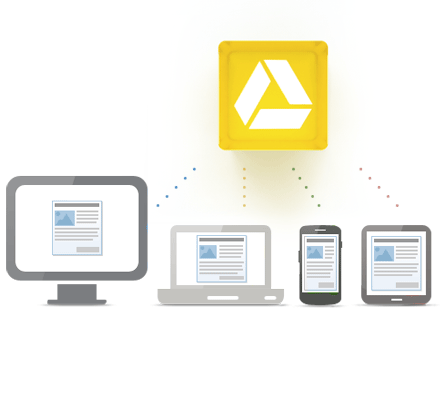
Google Drive - you can upload any type of file  and you get anywhere from 25 to 100 GB of storage free. 100GB of free storage comes with Chromebooks and other products. You can purchase additional storage at extremely good rates too. There are mobile apps and desktop apps that allow automatic backup and syncing of your files. You can have files uploaded and converted to Google Docs/Sheets/Slides, or kept in their native format. This is my primary backup system with all of my files backed up to my GDrive account. 

I'm a huge believer in being prepared and having backups of my data. The services I use have great data centers and backup, but sometimes their servers go down, and sometimes I may not be able to get internet access. In addition to having all of my files backed up with Google Drive and Dropbox, I also export my cloud files. 


Evernote - I have Evernote's desktop application at home and at work so all of my notes are backed up on my home computer and my work desktop and laptop. I also export the data once a week to an html file for backup. I do most of my work through Evernote (My Workflow as a CIO - Includes Heavy Use of Evernote This is updated with how I'm using Evernote in my role as CIO), so this is very important to keep backed up. I also have important files in Evernote, and important records and photos. My most important files are here and in GDrive.

Google Products - I also export my Blogger blogs, Calendar, email, tasks, and bookmarks once a week as a back up. For each of them, go to settings and look for the export command. Here's more information on how to export data from Google's services.
(I use Google Chrome so my bookmarks are synced between my two computers.)

All of the backup files are in a directory that is automatically backed up to my Google Drive account and then kept in sync on both my school and home computers. Sugarsync does this automatically, so it is no effort for me. I also have really, really important data (financial, digitized paper records, etc) on a flash drive in my fireproof safe. Just in case.

My Android smart phone automatically syncs with my Google Calendar, Google Contacts and other Google services and I have my Evernote notebooks synced to it as well. I can also access all of my files on the cloud services through my smartphone.

This may all sound like overkill to some people, but I feel more comfortable knowing that my data is safe, backed up, and easily accessible. 


Wednesday, March 26, 2014
Sweet! You can now edit images right in Google Slides and Drawings

Sweet! You can now edit images right in Google Slides and Drawings


Google just announced image editing inside of Google Slides and Drawings. I'm ecstatic about this as I use lots of images in my presentations and its so much easier to just edit them in the presentation than in a separate app.

You can crop, add borders, and even add masks. Check out the full release below.


Posted: 


(Cross-posted on the Drive Blog.)

Google Slides and Drawings make it easy for you to tell a story and share your ideas. And a big part of storytelling is the images you use to bring a concept to life. Now it’s even easier to get those images just right, because Slides will let you crop, apply shape masks, and add borders to your images right within your presentation.

Cropping
To crop an image, select it and click on the crop image icon in the toolbar.
Then drag the corners to your desired crop size and hit enter to make the crop.
Applying masks 
To crop your image to a particular shape, apply a mask from the pull-down menu next to the crop icon.
There are tons of shapes, arrows and callout designs to choose from, like the diamond example below.
Adding borders 
Add a border to your image by clicking on the line weight icon, and give it a little extra pop by changing the line color.
Look out for image editing in Slides and Drawings over the next couple of hours. Here’s to more beautiful presentations and drawings!


Thursday, March 13, 2014
educlipper Social Web Clipper iPad app Gets Even More Great Features

educlipper Social Web Clipper iPad app Gets Even More Great Features


Educlipper is a great, free app from a colleague of mine, Adam Bellow, that just keeps getting better. I've written about it before ( EduClipper social web clipper gets Updated with Some Great New Features ). It started as a way to clip and share online educational resources, but it has expanded to have a huge variety of features. Take a look and try it out. The iPad app just got some great new features.


We're super excited to share with you the new update 
for the eduClipper iPad app that was released today!
 
Here are some of the amazing new features in eduClipper Version 2.2
 
 
Whiteboard Recording
 
We love seeing what you create on eduClipper and students and teachers have both asked for the ability to do a whiteboard recording from within our app to eliminate extra steps when creating eduClips. So we are super excited to announce that you can now create whiteboard recordings as an eduClip from the "Add eduClip" page.  This is especially cool as students can capture their class work and then annotate and narrate right on top of it quickly and easily! Looking forward to seeing the great things you will share!
 

Enhanced Annotation Tools

Annotating on top of images (and the new Whiteboard tool) is a powerful part of eduClipper.  We are excited to have added new tools and enhanced other ones!  Now you can pinch-to-zoom in on images while annotating them, change the colors, fonts, thickness of lines, and move items around the screen.  This is a great way to capture student work and then add a layer of explanation on top of it to showcase methods, key ideas, or anything else the viewer might want to know. 

In-App Downloading of Clips

Want to save the awesome eduClip you just created back to your device or Airdrop it to a nearby computer? Well, now you can! Just look for the download icon when viewing any of your eduClips. 
 
New Notifications Center
Our new notifications center lets you easily see all notifications you've gotten on eduClipper - not just the most recent ones. 
Now you can search and explore all of them by loading the full-screen view from the icon on the notifications tab.
  
 
And there's a lot more too!
 
From new animations (which we really love), to the new caching system that will improve the overall app functionality and allow for off-line access, there are a lot of tweaks and enhancements under the hood of this new version that make it great!
 
Hope that you enjoy using this with your students and be on the lookout for more eduClipper news soon!
 
 
Happy Clipping,
Adam
Founder, eduClipper


Friday, February 14, 2014
Google Doodle contest for students - be creative, win a scholarship

Google Doodle contest for students - be creative, win a scholarship


Doodle 4 Google is a great project for students. They get to be creative and get a chance to win a scholarship. The theme this year, "If I could invent one thing to make the world a better place…” is all about curiosity, possibility and imagination.
Here's information from the official release:

Creating the best doodle comes with major perks: this year—for the first time ever—the winner of the competition will become an honorary Google Doodler for a day and animate his or her Doodle for the homepage with the Doodle team. The winning Doodle will then be featured on the Google homepage for a day for millions to see. If that’s not cool enough, the winner will also receive a $30,000 college scholarship and a $50,000 Google for Education technology grant for his or her school.
If you feel like your young artist may need a little nudge to get their creative juices flowing, we’re partnering withDiscovery Education to offer videos and activities for teachers and parents as well as a virtual field trip to Google’s headquarters. We’re also offering interactive “Meet the Doodler” Connected Classrooms sessions where kids can meet Google Doodlers, learn about their process from idea to a Doodle, and ask questions along the way.

Mark your calendar to send in your kids’ submissions by March 20. Judging starts with Googlers and a panel of guest judges, including astronaut Ron Garan, author of the Percy Jackson Series Rick Riordan, Google[x] Captain of Moonshoot Astro Teller, directors of The LEGO Movie Chris and Phil, President of RISD school Rosanne Somerson, robotics designer Lee Magpili, and authors Lemony Snicket and Mary Pope Osborne.
On April 29, we’ll announce the 50 state finalists and open up a public vote to select the national winner. These 50 kids will all get to visit Google’s headquarters in Mountain View, Calif. on May 21 for a day full of creative workshops and other fun activities—and the winning (animated!) doodle will be revealed on google.com in June.

Participating is easier than ever. Teachers and parents can download entry forms on our Doodle 4 Google site. Doodles can be uploaded digitally to our site or mailed in. We encourage full classrooms to participate too! There’s no limit to the number of doodles from any one school or family... Just remember, only one doodle per student.
That’s all I’ve got. Now get to doodling!


This is a great project that lets students be creative and artistic, while giving them a chance to win a great scholarship.


Copyright © 2012 Top gaming laptop All Right Reserved